
User Guide
Article 321 Compliance Report (Prescriptive Pathway)
Version 1, 02/28/2025



Article 321 Compliance Report
This guide provides an overview of the Article 321 Compliance Report submission process pursuant to the Prescriptive pathway via Energy Conservation Measures (PECMs), including:
- Submitting payment and generating a DOB NOW Payment Confirmation Number
- Uploading a PECM template and supporting documentation to demonstrate compliance
- Uploading supporting documentation for your property use type and gross floor area (GFA) and confirming Qualified retro-commissioning (RCx) agent attestation.
Covered buildings as defined by Article 321 (certain rent-regulated accommodations and houses
of worship) must comply with §28-321.2.1, Energy compliant buildings (Performance-based pathway via
2030 emissions limits), OR §28-321.2.2 Prescriptive pathway via Energy Conservation Measures (PECMs). This guide pertains to owners of Article 321 buildings opting for the Prescriptive pathway.
Article 321 Compliance Report (Prescriptive Pathway) 2


Step 1: Submit Payment
- Navigate to the DOB Now login page at nyc.gov/dobnow, enter your NYC.ID email address in the Email field,
and select Login. If you need to create an NYC.ID account, select Create Account or visit nyc.gov/dobnowtips for resources and step-by-step instructions.
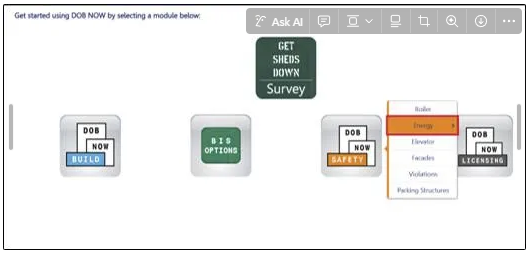
- After logging into DOB NOW, the Welcome page displays. Hover over DOB NOW: Safety and click Energy.
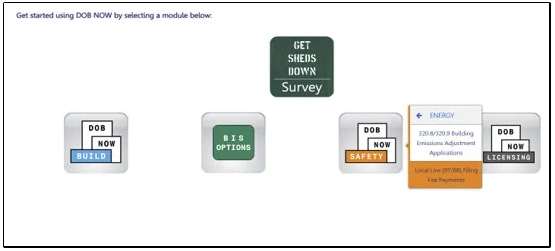
- From the Energy sub-menu, select Local Law 97/88 Filing Fee Payments.
Article 321 Compliance Report (Prescriptive Pathway) 3

Step 1: Submit Payment
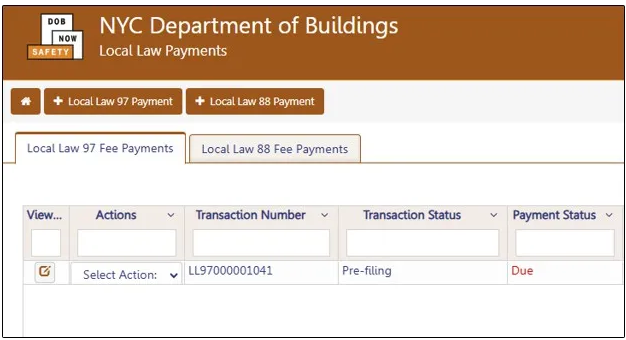
- On the Local Law Payments dashboard, select +Local Law 97 Payment.
Article 321 Compliance Report (Prescriptive Pathway) 4

Step 1: Submit Payment
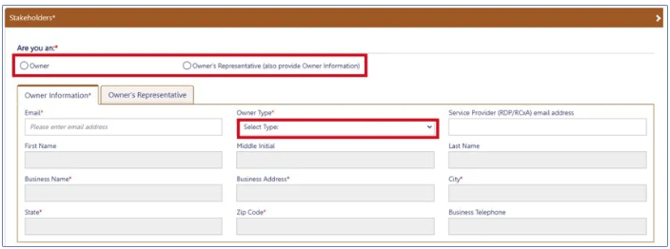
In the Stakeholders section, select your role: Owner or Owner’s Representative. The information of the logged in user will auto-populate in the selected section. Owner information is required.
- To change the name or address, select Manage/Associate Licenses from the person icon in the top right corner of the screen.
- If the logged in user is an Owner’s RepresentativeϠ enter the email address associated with the NYC.ID account of the owner on
the Owner Information Tab. The grayed-out fields will auto-populate from the DOB NOW profile associated with the NYC.ID account.
NOTE: To submit a compliance report in BEAM, you must first pay your filing fee and create an account in BEAM using one of the
following emails provided here: Owner, Owner's Representative, or Service Provider (RDP/RCxA). Only these emails will allow you to access your building profile in BEAM. You must add all three email addresses by clicking either the Owner information or the Owner's Representative tabs.
Article 321 Compliance Report (Prescriptive Pathway) 5
Step 1: Submit Payment
- Under Owner Information, select Owner Type.
- The following owner types are fee exempt: Non-profit organization, NYC Agency, NYCHA/HHC Owned and Operated, Other Government Owned and Operated, School Construction Authority.
- Fee-exempt owners are exempt from payment but still must complete these steps to get the Payment
Confirmation Number to be entered in the BEAM Reporting Portal. If a fee exempt owner type is selected, the NYC
Department of Finance Property Information must indicate that the Tentative or Final Assessment Roll assessed value is zero. Go to nyc.gov/nycproperty to print proof of exemption and upload it in the Reporting Portal with your report.
Article 321 Compliance Report (Prescriptive Pathway) 6

Step 1: Submit Payment
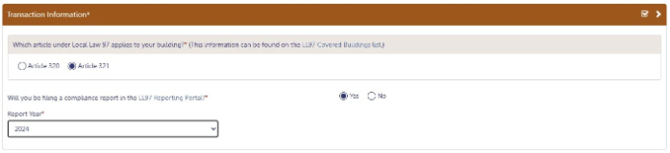
- Select Article 321 to indicate your compliance pathway. Compliance requirements can be confirmed on the LL97 Covered Buildings List.
- Select Yes when asked whether you will be filing a compliance report in the LL97 Reporting Portal and select 2024 as your Report Year.
Article 321 Compliance Report (Prescriptive Pathway) 7

Step 1: Submit Payment
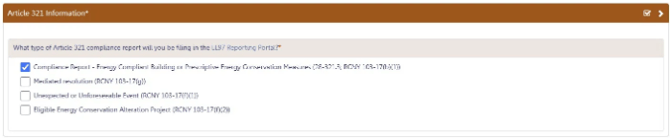
- Select Compliance Report - Energy Compliant Building or Prescriptive Energy Conservation Measures (28-321.3; RCNY 103-17(b)(1)).
Article 321 Compliance Report (Prescriptive Pathway) 8
Step 1: Submit Payment
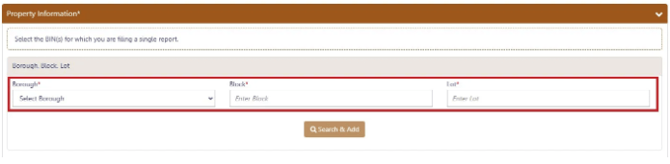
- In the Property Information section, enter the Borough, Block and Lot and click Search & Add.
Article 321 Compliance Report (Prescriptive Pathway) 9

Step 1: Submit Payment
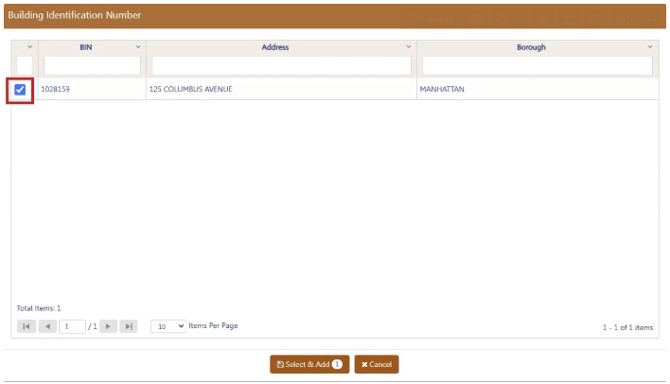
- In the Building Identification Number pop-up window, check the box(es) by the BIN(s) for this payment then select Select & Add.
Article 321 Compliance Report (Prescriptive Pathway) 10
Step 1: Submit Payment
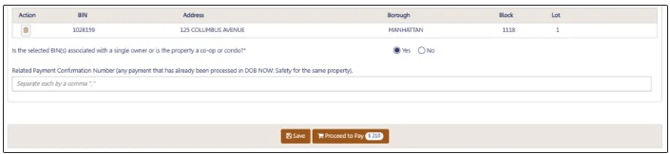
- The property information will then be listed in a grid under the Search & Add button and can be removed by selecting the trash icon. If selections are changed in the Transaction Information section after an address has been added, the system will remove the address and it will need to be re-entered.
- Select Yes to confirm the BIN(s) has either a single owner or the property is a co-op or condo. Enter any Related Payment Confirmation Number (any payment that has already been processed in DOB NOW: Safety for the same property)
Article 321 Compliance Report (Prescriptive Pathway) 11

Step 1: Submit Payment
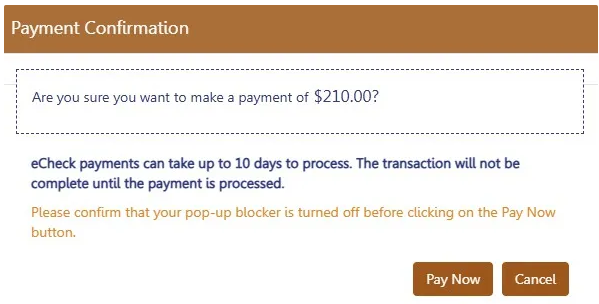
- For all other buildings, the Proceed to Pay button will display the payment amount. Click Proceed to Pay and then Pay Now. A CityPay window will open in a new window/tab where payment is made by selecting the Check or Credit Card tab. See the DOB NOW Payments CityPay Manual (link) for step-by-step instructions.
Article 321 Compliance Report (Prescriptive Pathway) 12


Step 1: Submit Payment
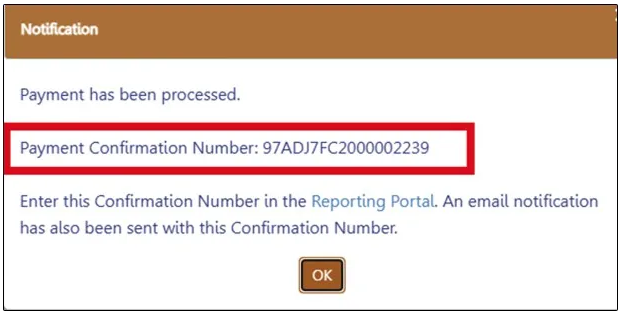
- After payment is submitted in City Pay, receipt details will be provided that show a receipt number. This is NOT the number to be entered in to the BEAM Reporting Portal.
- Return to the DOB NOW window. For credit card/Paypal/Venmo payments, you will see a notification with a
Payment Confirmation Number. This is the number to be submitted in the Reporting Portal. It will also be sent to you by email.
Article 321 Compliance Report (Prescriptive Pathway) 13

Step 1: Submit Payment
- For payments by eCheck, the status of the transaction will change to Pending Payment Verification. The
Payment Confirmation Number will be sent by email when the payment clears (up to 10 business days after it is submitted).
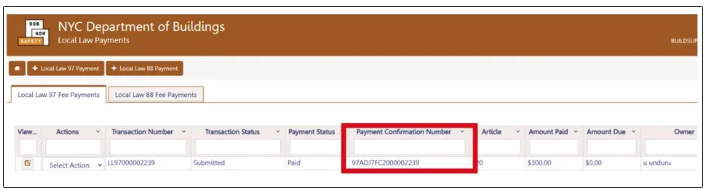
- The Payment Confirmation Number can be viewed on your dashboard once the Transaction Status is
submitted. To view all transaction details, double click on the transaction number to open it. From the Actions column, you can delete any transaction in Pre-Filing status.
Article 321 Compliance Report (Prescriptive Pathway) 14




Step 2: Submit Article 321 Compliance Report Ticket
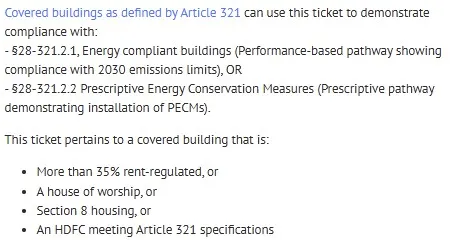
- Log in to the BEAM Platform at nyc.beam-portal.org. From the sidebar, click New Ticket, then select 05. LL97 Compliance Report (Article 321)
Article 321 Compliance Report (Prescriptive Pathway) 15


Step 2: Submit Article 321 Compliance Report Ticket
- On the Create Ticket page, enter Submitter Email. This email address with receive copies of all public
updates to this ticket. The email address must match one of the email addressees entered in DOB NOW (building owner, owner representative, or service provider).
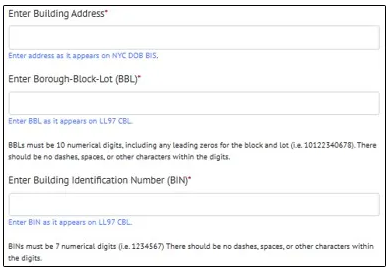
- Enter Building Address (as it appears in DOB NOW), Borough-Block-Lot (BBL) and Building Identification Number (BIN).
Article 321 Compliance Report (Prescriptive Pathway) 16

Step 2: Submit Article 321 Compliance Report Ticket
- Select Prescriptive pathway via Energy Conservation Measures (PECMs). This will display the requirements for compliance.
Certain PECMs may not apply to an Article 321-covered building depending on existing building systems. Refer to the Article 321 Filing Guide for more information on applicability.
Article 321 Compliance Report (Prescriptive Pathway) 17
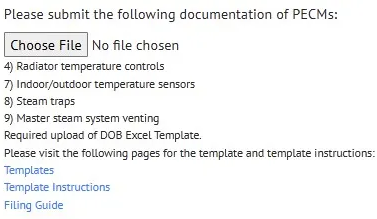

Step 2: Submit Article 321 Compliance Report Ticket
- Four of the thirteen PECMs require detailed supporting documentation, one acceptable form of which is
the DOB PECM Template. Refer to Article 321 Template Instructions for examples of successful filings. Other acceptable forms of documentation are detailed in the Article 321 Filing Guide.
Certain PECMs may not apply to an Article 321-covered building depending on existing building systems. Refer to the Article 321 Filing Guide for more information on applicability.
Article 321 Compliance Report (Prescriptive Pathway) 18

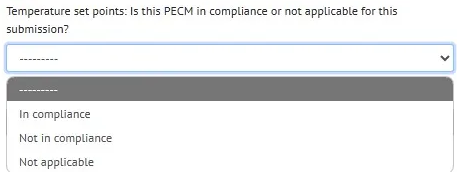
Step 2: Submit Article 321 Compliance Report Ticket
- Nine of the thirteen PECMs require an attestation only. For each of these PECMs, indicate In compliance, Not in compliance or Not applicable.
Note: DOB may request additional documentation to confirm compliance of these PECMs.
Article 321 Compliance Report (Prescriptive Pathway) 19

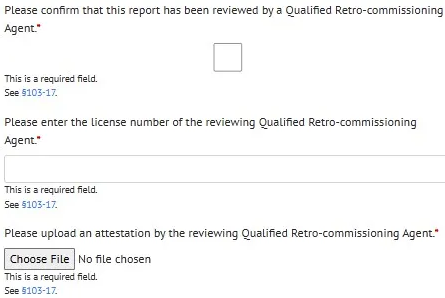
Step 2: Submit Article 321 Compliance Report Ticket
Click the check box to confirm that the request has been reviewed by retro-commissioning (RCx) agent.
- Enter the license information of the reviewing RCx agent.
- Upload the Article 321 Attestation form provided by DOB. This form must be signed by both the RCxA and owner.
Article 321 Compliance Report (Prescriptive Pathway) 20

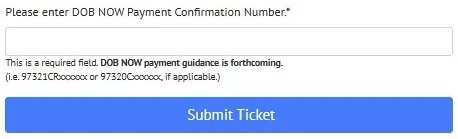
Step 2: Submit Article 321 Compliance Report Ticket
- Enter DOB Now Payment Confirmation Number (as referenced in Slide 13/14).
- Click Submit Ticket to submit your Article 321 Compliance Report.
Article 321 Compliance Report (Prescriptive Pathway) 21